Along with your PLAATO Pro, you will have received a PLAATO Connect. Your PLAATO Connect works like a small router. It gives IP addresses to your PLAATO Pro devices so they can communicate.
The PLAATO Connect normally uses the IP address: 192.168.8.1
However, some internet routers also use this same IP address. If both devices use the same address, they will conflict and the PLAATO Connect may not work properly.
💡 Solution: Change the IP Address of the PLAATO Connect
To fix this, you need to change the IP address of the PLAATO Connect.
⚠️ You will need login details from our support team before starting. Please contact support@plaato.io to receive the username and password.
Step-by-Step Guide
1. Connect to the PLAATO Connect
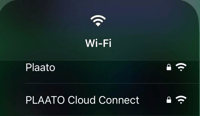
-
Disconnect from your normal WiFi.
-
Connect to the network called Plaato Cloud Connect.
-
If you don’t have the login details, email support@plaato.io
2. Open the Settings Page
-
Open your web browser.
-
Type 192.168.8.1 into the address bar.

-
Press Enter.
3. Log In
-
Enter the password provided by support@plaato.io
4. Go to Network Settings
-
In the left menu, click “More Settings”
-
Then click “LAN IP”
5. Change the IP Address
-
You will see the current IP address: 192.168.8.1
-
Change the number 8 to 5, 6, or 7.
For example: 192.168.8.1 → 192.168.7.1
⚠️ Important:
Make sure the new IP address does not match the “Guest IP” (usually 192.168.9.1). You can check this under the “Guest IP” tab.
6. Apply the Changes
-
Click “Apply” to save the new IP address.
7. Wait for Reboot
-
The PLAATO Connect will restart. This may take a few minutes.
-
After restarting, you must use the new IP address (for example 192.168.7.1).
8. Check in the App
-
Open the PLAATO app.
-
Go to Account → Connect.
-
Look for a recent heartbeat (a status update from the Connect).
If you see a heartbeat from the last few minutes, everything is working.
If you don’t see one:
-
Refresh the app.
-
Wait 2–3 minutes.
-
If it still doesn’t appear, click here for more potential reasons.