Not to worry! Follow the steps below to get connected and start receiving your first readings. 🚀
1. Battery Check 🔋
Ensure the PLAATO Pro has enough battery power.
a) Unscrew the lid and take out the battery pack.
b) Check that the batteries are fresh and correctly inserted.
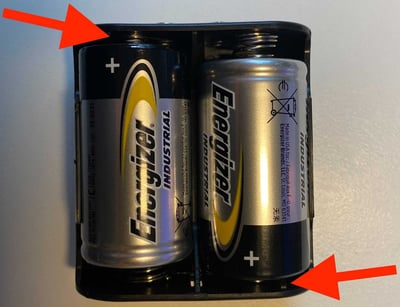
c) Reinsert the battery pack and switch the device On.
d) The LEDs should light up, indicating there is sufficient power.
2. Check the PLAATO Connect 🔌
Your PLAATO Pro shipment includes a PLAATO Connect, an ethernet cable, and a power cord.
a) Plug the PLAATO Connect into power using the provided power cord.
b) Connect one end of the ethernet cable to the WAN port on the PLAATO Connect.
c) Connect the other end to a LAN port on your WiFi router.
d) The three LEDs should begin flashing. Wait approximately 2 minutes.
While waiting:
e) Add your PLAATO Connect serial number to your account:
-
In the mobile app, go to Account → Connect
-
Tap the “+” icon and scan the QR code on the back of the PLAATO Connect.
f) When all three LEDs remain illuminated, the PLAATO Connect is successfully online.
-
Open the app and check Connect.
-
If you see heartbeats from the last few minutes, you are successfully connected.
-
If not, wait 2 minutes and refresh the page.
3. PLAATO Connect Not Showing Three Lights or No Heartbeat
If your PLAATO Connect is not fully online, possible causes include:
a) LAN port not configured for internet access
Check with your IT team to ensure the LAN port is properly configured and open for IoT communication.
b) Conflicting IP address
The PLAATO Connect uses IP address 192.168.8.1. Some routers (e.g., certain Huawei models) use the same IP address, which creates a conflict. This must be resolved in your router settings.
c) Firewall or security restrictions
Firewalls or network security settings may block communication. Please confirm with your IT team that the required ports for IoT communication are open.
Please click here to verify which ports are required for IoT communication.
4. PLAATO Connect Online, But Pro Still Not Connecting
If the PLAATO Connect shows three illuminated LEDs and heartbeats in the app, but your Pro is not connecting:
a) Distance
We recommend a maximum distance of 60 meters between the PLAATO Pro and the PLAATO Connect. Try relocating the Connect closer to your tanks or placing it in a more elevated position.
b) Obstacles
Walls, metal structures, or IT cupboards can reduce signal strength. Try placing the PLAATO Connect inside your cellar or in a more open location to improve signal reliability.
5. Network Frequency
The PLAATO Pro only supports 2.4 GHz WiFi networks.
It does not support 5 GHz or 6 GHz networks. If your router is set to 5 GHz only, the PLAATO Pro will not detect the network.