What Is the Stabilisation Phase?
When wort is transferred into the fermentation tank at the start of a batch, the PLAATO Pro sensor needs time to adjust to the liquid temperature inside the tank. This adjustment period is known as the Stabilisation Phase.
The Stabilisation Phase typically lasts 30–60 minutes. During this time, temperature changes inside the tank can affect density readings. To ensure accuracy, the PLAATO Pro takes multiple measurements before calculating and displaying a reliable Original Gravity (OG).
Your first accurate OG reading will appear once the temperature has stabilized.
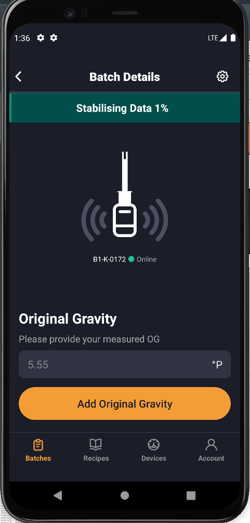
We encourage you to take and add your manual measured OG for the batch into the Plaato Pro App during this time in the "Add Original Gravity" field.
What to Expect During the Stabilisation Phase
When you create a new batch and the liquid reaches the PLAATO Pro, the app will display a “Stabilising Data” screen.
You will see:
-
A progress bar at the top of the screen
-
Real-time visualization of the stabilisation process
Once stabilisation is complete:
-
The first reading will appear on the batch graph
-
Your batch officially begins
-
Fermentation tracking starts automatically
This behavior is normal and expected.
Adjusting the OG
If we observe a difference between your manually measured OG and the PLAATO Pro's OG, you will be given the option to adjust the OG for the batch during the stabilisation phase.
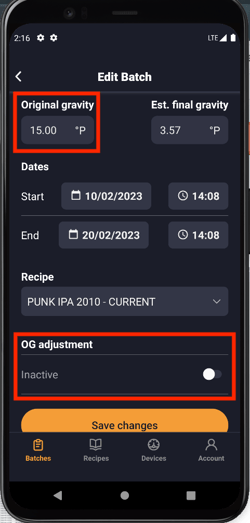
NOTE: The option to adjust your OG will also be available throughout the batch on your "Edit Batch" screen. Here is how to 👇🏼
-
Launch your PLAATO Pro App.
-
Tap on "Batches" and select the batch you would like to adjust the OG for.
-
Tap the settings "Cogwheel" in the top corner of your screen.
-
Tap into the "Original Gravity" field and enter your manually measured OG.
-
To adjust your batch, scroll to the "OG Adjustment" field and toggle it on.
-
Save your changes.